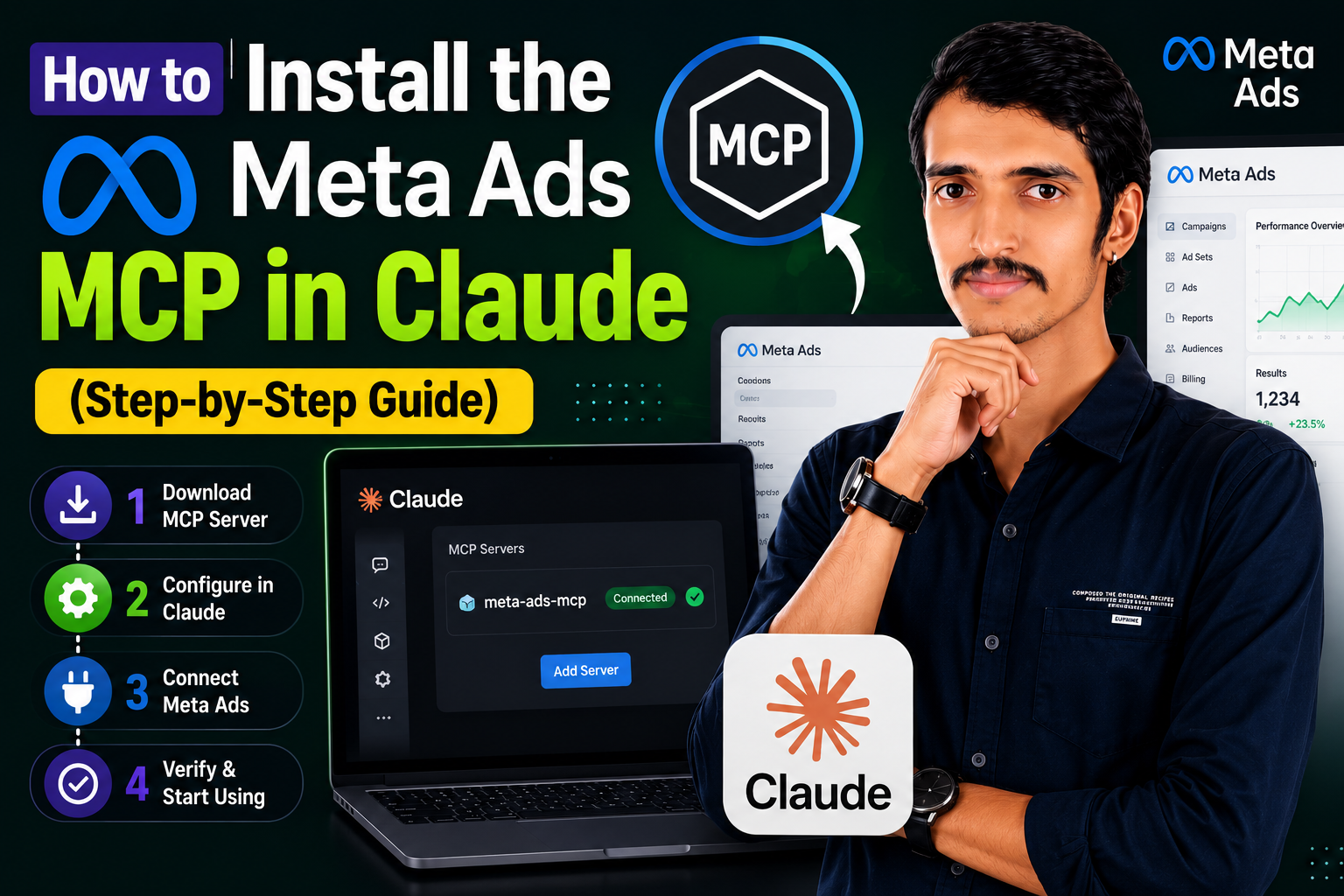
കഴിഞ്ഞ കുറച്ചു ആഴ്ചകളായി AI ഓട്ടോമേഷന്റെ ലോകം ശ്രദ്ധിക്കുന്ന ഒരാളാണോ നിങ്ങൾ? എങ്കിൽ സോഷ്യൽ മീഡിയ തുറക്കുമ്പോഴൊക്കെ Claude ഉപയോഗിച്ച് Meta Ads എങ്ങനെ ഓട്ടോമേറ്റ് ചെയ്യാം എന്ന് കാണിക്കുന്ന വീഡിയോകളും പോസ്റ്റുകളും ഒരുപാടു കണ്ടിട്ടുണ്ടാകും.
സത്യം പറഞ്ഞാൽ, തുടക്കത്തിൽ ഇറങ്ങിയ അനൗദ്യോഗിക (unofficial) കുറുക്കുവഴികളും സ്ക്രിപ്റ്റുകളും പരീക്ഷിച്ച് നോക്കിയവർ നേരിട്ട ഏറ്റവും വലിയ തലവേദന എന്താണെന്ന് അറിയാമോ? കഷ്ടപ്പെട്ട് വളർത്തിയെടുത്ത പരസ്യ അക്കൗണ്ടുകൾ ഒന്നടങ്കം ബാൻ (Account Ban) ആയിപ്പോവുക എന്നത് തന്നെ!
എന്നാൽ ഇനി ആ പേടി വേണ്ട. കാരണം, Meta ഇപ്പോൾ ഔദ്യോഗികമായി തന്നെ അവരുടെ Model Context Protocol (MCP) പുറത്തിറക്കിയിരിക്കുകയാണ്. ഇനി മീഡിയ ബയേഴ്സിനും ഏജൻസികൾക്കും മാർക്കറ്റിംഗ് ടീമുകൾക്കും യാതൊരു സുരക്ഷാ ഭീഷണിയുമില്ലാതെ സ്വന്തം ഫേസ്ബുക്ക് ആഡ് അക്കൗണ്ടുകൾ Claude-ലേക്ക് നേരിട്ട് ബന്ധിപ്പിക്കാം.
ഈ പുതിയ Meta Ads MCP കൊണ്ട് എന്തൊക്കെ മാറ്റങ്ങളാണ് വരാൻ പോകുന്നത്? ഇത് എങ്ങനെ സിംപിളായി സെറ്റപ്പ് ചെയ്യാം? ഒപ്പം തുടങ്ങുന്നതിന് മുൻപ് അറിഞ്ഞിരിക്കേണ്ട പ്രധാനപ്പെട്ട ഒരു പരിമിതി എന്താണ്? എല്ലാം വിശദമായി തന്നെ താഴെ പറയാം.
എന്താണ് Meta Ads MCP? ഇതുകൊണ്ട് നമുക്ക് എന്തൊക്കെ ചെയ്യാൻ പറ്റും?
Claude പോലുള്ള AI മോഡലുകൾക്ക് പുറത്തുള്ള ആപ്പുകളിലെ വിവരങ്ങൾ സുരക്ഷിതമായി എടുക്കാനും (read), അങ്ങോട്ട് മാറ്റങ്ങൾ വരുത്താനും (write) സഹായിക്കുന്ന ഒരു ഓപ്പൺ സ്റ്റാൻഡേർഡാണ് Model Context Protocol (MCP).
Meta-യുടെ ഈ ഒഫീഷ്യൽ സപ്പോർട്ട് വന്നതോടെ, വെറുതെ പരസ്യത്തിന് കോപ്പി എഴുതിത്തരുന്ന ഒരു ചാറ്റ്ബോട്ട് മാത്രമല്ലാതായി Claude മാറുകയാണ്. പകരം നിങ്ങളുടെ Ads Manager-ന്റെ ഒരു വിശ്വസ്ത അസിസ്റ്റന്റായി തന്നെ Claude നേരിട്ട് പ്രവർത്തിക്കും.
Meta-യുടെ ഔദ്യോഗിക വിവരങ്ങൾ പ്രകാരം താഴെ പറയുന്ന കാര്യങ്ങളൊക്കെ Claude-ന് കൈകാര്യം ചെയ്യാൻ കഴിയും:
- ക്യാമ്പെയ്ൻ മാനേജ്മെന്റ് (Campaign Management): നമ്മൾ സാധാരണ സംസാരിക്കുന്ന ഭാഷയിൽ തന്നെ പ്രോംപ്റ്റ് നൽകി പരസ്യങ്ങൾ, ആഡ് സെറ്റുകൾ, മുഴുവൻ ക്യാമ്പെയ്നുകൾ എന്നിവ പുതുതായി ഉണ്ടാക്കാനും മാറ്റങ്ങൾ വരുത്താനും ഒപ്റ്റിമൈസ് ചെയ്യാനും സാധിക്കും.
- ഡീറ്റെയിൽഡ് പെർഫോമൻസ് റിപ്പോർട്ടിംഗ് (Deep Performance Reporting): നിങ്ങളുടെ പരസ്യങ്ങളുടെ റിസൾട്ടിനെക്കുറിച്ചും മെട്രിക്സുകളെക്കുറിച്ചും നേരിട്ട് ചോദിക്കാം. ചാറ്റ് സ്ക്രീനിൽ തന്നെ കസ്റ്റം ഡാറ്റാ റിപ്പോർട്ടുകൾ Claude തയാറാക്കി തരും.
- കാറ്റലോഗ് മാനേജ്മെന്റ് (Catalog Management): പ്രൊഡക്റ്റ് കാറ്റലോഗുകൾ വളരെ എളുപ്പത്തിൽ ഉണ്ടാക്കാനും, പ്രൊഡക്റ്റ് ഡാറ്റാ ഫീഡ് വിവരങ്ങൾ അപ്പപ്പോൾ അപ്ഡേറ്റ് ചെയ്യാനും കഴിയും.
- അക്കൗണ്ട് ഹെൽത്ത് ചെക്കുകൾ (Account Health Diagnostics): ഡെലിവറി തടസ്സങ്ങളോ പോളിസി തെറ്ററ്റങ്ങളോ ഉണ്ടോ എന്ന് മുൻകൂട്ടി തിരിച്ചറിയാൻ അക്കൗണ്ടുകളിൽ ഓട്ടോമേറ്റഡ് ഹെൽത്ത് ചെക്കുകൾ നടത്താം.
എല്ലാറ്റിലുമുപരി, ഇത് Meta നേരിട്ട് അംഗീകരിച്ച ഒഫീഷ്യൽ ഇന്റഗ്രേഷൻ ആയതുകൊണ്ട് തന്നെ, പണ്ട് തേർഡ് പാർട്ടി സ്ക്രിപ്റ്റുകൾ ഉപയോഗിച്ചപ്പോൾ സംഭവിച്ചതുപോലെ അക്കൗണ്ട് പൂട്ടിപ്പോകുമെന്ന ഭയം ഒട്ടുമേ വേണ്ട.
Claude-ൽ ഈ Meta Ads MCP എങ്ങനെ സെറ്റപ്പ് ചെയ്യാം?
ഇത് സെറ്റ് ചെയ്തെടുക്കാൻ അഞ്ച് മിനിറ്റിൽ താഴെ സമയം മാത്രം മതി. ലോക്കൽ അല്ലെങ്കിൽ സെർവർ വഴിയുള്ള MCP കണക്ഷനുകൾ സുഗമമായി പ്രവർത്തിക്കാൻ Claude Desktop App തന്നെ ഉപയോഗിക്കാൻ പ്രത്യേകം ശ്രദ്ധിക്കുക.
- സ്റ്റെപ്പ് 1: Claude Connectors തുറക്കുക
Claude desktop ആപ്പ് ഓപ്പൺ ചെയ്യുക. മെനുവിലെ Customize ക്ലിക്ക് ചെയ്ത് Connectors ടാബിലേക്ക് പോവുക. അവിടെ കാണുന്ന + (plus) ബട്ടൺ അമർത്തുക. - സ്റ്റെപ്പ് 2: Custom Connector തിരഞ്ഞെടുക്കുക
ഓപ്ഷനുകളിൽ നിന്ന് Custom Connectors എടുക്കുക. തിരിച്ചറിയാൻ എളുപ്പമുള്ള ഒരു പേര് നൽകുക (ഉദാഹരണത്തിന്: Meta Ads MCP അല്ലെങ്കിൽ Facebook Ads Manager). - സ്റ്റെപ്പ് 3: Meta MCP Server URL നൽകുക
Meta-യുടെ ഡെവലപ്പർ ഡോക്യുമെന്റേഷനിൽ ലഭ്യമായിട്ടുള്ള ഔദ്യോഗിക Meta MCP സെർവർ ഹോസ്റ്റിംഗ് URL കോപ്പി ചെയ്ത്, MCP Server URL എന്ന കോളത്തിൽ പേസ്റ്റ് ചെയ്ത ശേഷം Connect ക്ലിക്ക് ചെയ്യുക. - സ്റ്റെപ്പ് 4: Meta ലോഗിൻ വഴി അനുമതി നൽകുക
ഉടൻ തന്നെ Meta-യുടെ സുരക്ഷിതമായ ലോഗിൻ പേജിലേക്ക് നിങ്ങൾ റീഡയറക്ട് ചെയ്യപ്പെടും. അവിടെ ലോഗിൻ ചെയ്ത ശേഷം രണ്ട് വഴികൾ തെരഞ്ഞെടുക്കാം:- നിലവിലുള്ളതും ഭാവിയിൽ വരാൻ പോകുന്നതുമായ എല്ലാ ആഡ് അക്കൗണ്ടുകളും ഒരുമിച്ച് കണക്റ്റ് ചെയ്യുക (പല ബ്രാൻഡുകൾ ഒരുമിച്ച് കൈകാര്യം ചെയ്യുന്ന ഏജൻസികൾക്ക് ഇതാണ് സൗകര്യം).
- ആവശ്യമുള്ള നിർദ്ദിഷ്ട ആഡ് അക്കൗണ്ടുകൾ മാത്രം പ്രത്യേകം തെരഞ്ഞെടുക്കുക.
നിങ്ങളുടെ സുരക്ഷാ മാനദണ്ഡങ്ങൾക്ക് അനുയോജ്യമായ ഓപ്ഷൻ തെരഞ്ഞെടുത്ത് മുന്നോട്ട് പോവുക.
- സ്റ്റെപ്പ് 5: ഫൈനലൈസ് ചെയ്ത് ലോഞ്ച് ചെയ്യുക
അനുമതി കൊടുത്തു കഴിഞ്ഞാൽ സ്ക്രീനിൽ വരുന്ന Open in Desktop App എന്ന പ്രോംപ്റ്റിൽ ക്ലിക്ക് ചെയ്യുക. ഇതോടെ നിങ്ങളുടെ വിവരങ്ങൾ Claude-ലേക്ക് സിങ്ക് ആവുകയും കണക്ഷൻ പൂർണ്ണമായി നിലവിൽ വരികയും ചെയ്യും.
സെറ്റപ്പ് ശരിയായിട്ടുണ്ടോ എന്ന് എങ്ങനെ ടെസ്റ്റ് ചെയ്യാം?
എല്ലാം കൃത്യമായി നടന്നു എന്ന് ഉറപ്പാക്കാൻ, Claude-ൽ ഒരു പുതിയ ചാറ്റ് വിൻഡോ തുറന്ന് താഴെ കാണുന്ന ലളിതമായ കമാൻഡ് ഒന്ന് ചോദിച്ചു നോക്കുക:
“List all of the ad accounts available with the Meta Ads MCP.”
കണക്ഷൻ ശരിയാണെങ്കിൽ, Claude ഉടൻ തന്നെ API വഴി പരിശോധിച്ച് നിങ്ങളുടെ പ്രൊഫൈലുമായി ബന്ധിപ്പിച്ചിട്ടുള്ള Business Manager, Ad Account ഐഡികൾ കൃത്യമായി ചാറ്റിൽ കാട്ടിത്തരും.
ശ്രദ്ധിക്കേണ്ട ഒരു പ്രധാന കാര്യം (Rollout Limitation)
നിങ്ങളുടെ ദൈനംദിന ആഡ് ബജറ്റും ക്യാമ്പെയ്നുകളും പൂർണ്ണമായും ഇതിലേക്ക് മാറ്റുന്നതിന് മുൻപ് അറിഞ്ഞിരിക്കേണ്ട ഒരു സുപ്രധാന കാര്യമുണ്ട്. Meta ഈ പുതിയ സംവിധാനം എല്ലാവർക്കും ഒരുമിച്ച് അല്ല ലഭ്യമാക്കുന്നത്; ഘട്ടം ഘട്ടമായാണ് (staggered phases).
അതായത്, ലോകമെമ്പാടുമുള്ള 100% ആഡ് അക്കൗണ്ടുകളിലും നിലവിൽ ഈ ഒഫീഷ്യൽ Meta MCP ലൈവ് ആയിട്ടില്ല!
സെറ്റപ്പ് ചെയ്തു നോക്കുമ്പോൾ Claude നിങ്ങളുടെ അക്കൗണ്ടുകൾ ലിസ്റ്റ് ചെയ്തേക്കാം, എന്നാൽ ഒപ്പം ആ നിർദ്ദിഷ്ട അക്കൗണ്ട് ഐഡിയിൽ MCP നിലവിൽ ഡിസേബിൾഡ് ആണ് എന്നൊരു മെസ്സേജും കാണിച്ചേക്കാം. അങ്ങനെ കണ്ടാൽ പേടിക്കേണ്ടതില്ല. നിങ്ങളുടെ അക്കൗണ്ട് Meta-യുടെ റോൾഔട്ട് ക്യൂവിലേക്ക് എത്തിയിട്ടില്ല എന്ന് മാത്രമേ അതിനർത്ഥമുള്ളൂ. പണിപ്പുരയിലുള്ള പ്രൊജക്റ്റ് ആയതിനാൽ വരും ആഴ്ചകളിൽ കൂടുതൽ ഉപയോക്താക്കൾക്ക് ഈ ഫീച്ചർ തുറന്നുകിട്ടും.
Meta-യ്ക്ക് അപ്പുറം ചിന്തിക്കുമ്പോൾ: മൾട്ടി-ചാനൽ സാധ്യതകൾ
ഫേസ്ബുക്കിലും ഇൻസ്റ്റാഗ്രാമിലും മാത്രം പരസ്യം ചെയ്യുന്നവർക്ക് ഈ Meta Ads ഇന്റഗ്രേഷൻ വലിയൊരു അനുഗ്രഹം തന്നെയാണ്. എങ്കിലും ഇതിനൊരു സ്വാഭാവിക പരിമിതിയുണ്ട്: ഇതിന് Meta-യിലെ ഡാറ്റ മാത്രമേ മനസ്സിലാക്കാൻ സാധിക്കൂ.
എന്നാൽ ഒരു മോഡേൺ ഓമ്നി-ചാനൽ (omni-channel) വളർച്ച ലക്ഷ്യമിടുന്നവർക്ക് ഇതുകൊണ്ട് മാത്രം കാര്യം നടക്കില്ല. നിങ്ങളുടെ ഫേസ്ബുക്ക് പരസ്യച്ചെലവുകൾക്കൊപ്പം Google Ads, TikTok Ads, Shopify സ്റ്റോർ മെട്രിക്സ്, അല്ലെങ്കിൽ HubSpot, ActiveCampaign, Klaviyo പോലുള്ള CRM-കളിലെ ലീഡ് ഡാറ്റ എന്നിവ ഒത്തുനോക്കണമെന്നുണ്ടെങ്കിൽ, ഒരൊറ്റ പ്ലാറ്റ്ഫോം ഡാറ്റ മാത്രം നൽകുന്ന ടൂൾ വഴി ശരിയായ കണക്കുകൂട്ടൽ (attribution) സാധ്യമാകില്ല.
അത്തരം വലിയ സാഹചര്യങ്ങളിൽ Porter Metrics പോലുള്ള മൾട്ടി-ചാനൽ ടൂളുകളെ ആശ്രയിക്കാം. ഇത്തരത്തിലുള്ള aggregate marketing MCP വഴി 20-ലധികം വ്യത്യസ്ത ഡിജിറ്റൽ ഡാറ്റാ പ്ലാറ്റ്ഫോമുകൾ ഒരേസമയം Claude-ലേക്ക് എത്തിക്കാൻ കഴിയും. ഒരൊറ്റ ആഡ് നെറ്റ്വർക്കിൽ ഒതുങ്ങിപ്പോകാതെ, എല്ലാ ചാനലുകളെയും സമഗ്രമായി വിലയിരുത്താനും മികച്ച റിപ്പോർട്ടുകൾ ഉണ്ടാക്കാനും ഇതുവഴി സാധിക്കും.
നിങ്ങളുടെ അഭിപ്രായം എന്താണ്?
നിങ്ങളുടെ മെയിൻ പരസ്യ അക്കൗണ്ടുകളിൽ കൂടി ഈ ഫീച്ചർ ലഭ്യമായിക്കഴിഞ്ഞാൽ, പരസ്യങ്ങൾ മാനേജ് ചെയ്യുന്ന ജോലി Claude-നെ ഏൽപ്പിക്കാൻ നിങ്ങൾ തയാറാണോ? നിങ്ങളുടെ അഭിപ്രായങ്ങൾ താഴെ കമന്റിലൂടെ പറയൂ! ഒപ്പം പുത്തൻ AI ഓട്ടോമേഷൻ അപ്ഡേറ്റുകൾക്കായി ഫോളോ ചെയ്യാനും മറക്കരുത്!